
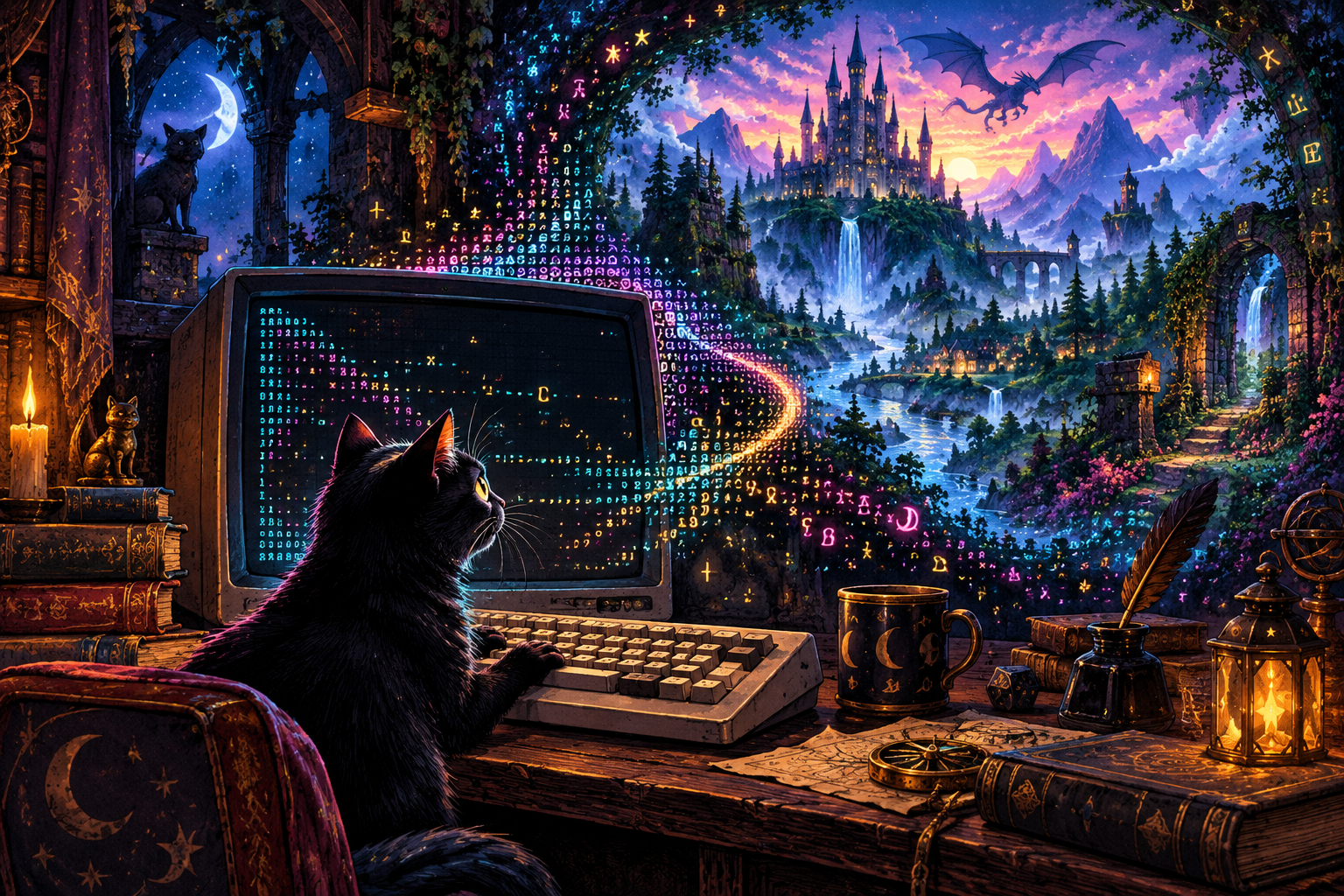
You came to look up a MUD. A perfectly reasonable plan. Read a little about the world, admire the artwork, maybe decide whether its particular combination of dragons, political intrigue, and suspiciously specific fishing mechanics is your kind of evening.
Then you notice the button.
Play Now.
A few moments later, a welcome screen is asking for your name. Somewhere beyond it, a city gate is open, a tavern is busy, and somebody has almost certainly left a cursed object where an inquisitive newcomer can find it.
So much for “just browsing.”
In our first dispatch, we explored the worlds behind the prompt. For our second, we are opening a door into them: InkAndAnsi’s built-in MUD terminal lets you launch a game directly from its profile and play in your browser.
Bring your curiosity. The terminal is already here.
From “that looks interesting” to “where am I?”
Discovery has a wonderful, fragile moment: you have found something that makes you want to try it, and you are ready to take the next step.
A good MUD profile can get you there. Perhaps the description promises a sprawling fantasy world. Perhaps the history suggests a community that has been telling stories together for years. Perhaps you have simply seen a game name so delightfully peculiar that you need to know what is happening inside.
We want that next step to be easy.
On a profile with browser play enabled and connection details available, Play Now opens the InkAndAnsi terminal for that particular game. The profile supplies the hostname and port, and the terminal makes an initial connection attempt automatically. You can also launch from a directory card wherever its Play Now button appears.
There is no separate client to install before your first visit. Choose a world, open its terminal, and follow the game’s welcome screen.
That is a pleasantly short distance between curiosity and a questionable decision involving a dungeon.
Your first visit, one small adventure at a time
Find a world that catches your eye
Start in the MUD directory. Search for a name or an idea, or narrow the list by genre, game type, or language. Open a profile and take a moment with its description, features, and connection notes.
Think of the profile as the sign outside the tavern. It can tell you what kind of establishment you are approaching. Going inside is how you discover whether the bard is any good.
Select Play Now
Choose Play Now on the profile. The terminal opens with the selected game’s name and connection information already in place, then attempts to connect.
Watch the connection status near the top. Once connected, the game’s own output appears in the main terminal area. Its greeting might be a simple login prompt, an elaborate color banner, or a dramatic proclamation that makes choosing a character name feel unexpectedly consequential.
If a profile does not show Play Now, browser play is not currently available there. Its official website and connection notes are the next places to look. A directory entry is an invitation to investigate, not a promise that every server is reachable at every moment.
Follow the game’s instructions
Read the welcome screen before typing your entire heroic backstory into a field that wanted a username.
Each game handles its own login, character creation, rules, and onboarding. Returning players can follow the prompts for their existing game account. New players should look for that game’s instructions for creating a character or entering as a guest, where offered.
Type into the command field at the bottom of the terminal and press Enter, or select Send. The game receives your input and replies in the output area above.
You have reached the essential loop: read, decide, type, discover.
Make your first goal wonderfully small
You do not need to conquer the world before you understand the room you are standing in.
Find the local help. Read a description. Locate an exit. Work out whether the person addressing you is another player, a shopkeeper, or a tutorial guide with unusually strong opinions about footwear.
Commands such as help, look, and inventory are common starting points, but commands vary between games. The welcome screen and the game’s own help are your guide.
Here is an imaginary exchange to capture the spirit, rather than a transcript or a universal command recipe:
> look
The Crooked Lantern
A fire crackles beneath a chimney that appears
 to have lost an argument with the roof.

A black cat occupies the only comfortable chair.
A notice reads: ADVENTURERS WANTED. REFERENCES OPTIONAL.

> look cat
The cat looks back.
You get the impression that your application
has already been reviewed.
Inks would like it known that the chair is essential infrastructure.
A proper little cockpit for your imagination
The terminal gives the game a large, dark playing area, framed in InkAndAnsi’s style. The output has room to breathe, while the command field stays beneath the action.
That matters when a room description turns into a conversation, the conversation turns into an expedition, and the expedition turns into six people explaining why somebody absolutely should not pull that lever.
The toolbar keeps a few useful adjustments close at hand.
Color belongs in text worlds. The terminal supports ANSI color and styling, so a game can send colored text, distinctive banners, and other text-screen flourishes. What you see depends on what that game sends and the display choices it offers.
Make the text comfortable. Choose a font and adjust the size to suit your screen. A larger setting is useful for relaxed reading; a smaller one can fit more of a wide map or busy scene. You can try full screen, where your browser supports it, when you want the world to take over a little more of your evening.
Give a game its own lettering. The terminal includes a Medievia font option and supports a game-provided custom font when one is configured. You can also load a font file for the current session. Text can carry quite a lot of personality before anyone has said a word.
Catch up without losing your place. Scroll back through recent output when you need to reread a clue or a conversation. When you are ready to return to the action, Latest output takes you back down. The terminal keeps a bounded amount of recent output, so make separate notes for anything you want to keep long term.
Keep connection controls within reach. Connect and Disconnect are in the toolbar. If your connection drops or an initial attempt fails, the status message gives you somewhere to start, and you can try connecting again.
Simple controls, with the attention left on the game. The dragon is perfectly capable of providing the drama.
Two accounts, two different jobs
Your InkAndAnsi account is your identity here: your profile, comments, Inks ratings, reviews, and forum participation.
Your game account belongs to the MUD you are visiting. The terminal connects you to that game; the game decides how you sign in, create a character, and play.
Creating an InkAndAnsi profile does not automatically create a character in every listed world. Equally, a character you have played for years still belongs to that game, with its own login process.
For simply opening the terminal, you can start from an available Play Now button. When the game asks who you are, answer according to its instructions.
Your towering reputation as the Scourge of the Eastern Marshes may be very impressive. The InkAndAnsi comment box will still need its own sign-in.
A few things worth knowing before the expedition
A little preparation goes a long way, particularly in worlds where “examine” and “activate” can have very different consequences.
- Give the welcome screen your attention. It often explains local rules, account options, and where newcomers should begin. Every community has its own customs.
- If characters look wrong, check the display settings. The terminal offers CP437, UTF-8, and Windows-1252 encoding choices. Follow the game’s recommendations; disconnect before changing encoding, then reconnect. Font choice can matter for maps and special symbols too.
- Treat the terminal as a live session. Leaving or closing its page ends the connection. Use the game’s recommended save and quit process when you are finished, then disconnect. Returning later means connecting again.
- Expect the occasional closed gate. A game can be offline, busy restarting, or temporarily unreachable. Check the status message and the profile’s official links, then try again later if appropriate.
- Keep the important discoveries somewhere you can find them. A character name, a useful command, or the route back to town deserves a note. “I will definitely remember which of these identical tunnels I used” is a sentence with a rich history of regret.
You are visiting a live world run by its own people. A little patience and a friendly introduction can be every bit as useful as a sharp sword.
The profile is the beginning of the story
There is something lovely about moving from reading about a game to experiencing it without breaking the thread of your curiosity.
A feature list becomes a place. A connection address becomes a welcome screen. A paragraph about a community becomes an actual person greeting you across the network.
That is what we want the built-in terminal to make easier: the first encounter, the unexpected return, the quick look that turns into an evening with a notebook beside the keyboard.
After your visit, come back to the profile. Tell other players what you found. Leave an Inks rating and a thoughtful review when you have enough experience to share one. Ask a question in the forum, or tell us in the comments which world first persuaded you that a few lines of text could contain an entire adventure.
Ready to open a door? Browse the MUD directory, choose a profile, and look for Play Now. You can also start by exploring Medievia’s profile.
Inks has inspected the keyboard. The cursor is blinking. The comfortable chair is, regrettably, still occupied.
Would you like to play a game?